




Key Takeaways

A complete guide to access, roles and permissions.

Access is role-based: Global Admin, Power Platform Admin, Dynamics 365 Admin get tenant-wide access.

DLP policies are your most powerful governance tool, protect them accordingly.

Follow the principle of least privilege: use the Power Platform Administrator role, not Global Admin, for day-to-day management.

The Microsoft ecosystem has several admin portals: Microsoft 365 Admin Center, Azure Portal, Microsoft Entra (Azure AD), Intune and more. It is genuinely easy to get lost. The Power Platform Admin Center is its own dedicated space and understanding where it lives, who can access what is inside it and how it supports Power Platform governance is foundational knowledge for anyone managing Power Apps, Power Automate, Power BI or Copilot Studio.

What Is the Power Platform Admin Center?

The Power Platform Admin Center (PPAC) is the centralized governance and management hub for the entire Microsoft Power Platform suite and a core component of power platform governance, which includes:

  • Power Apps – Build low-code/no-code business applications
  • Power Automate – Automate workflows and business processes
  • Power BI – Data analytics and reporting (shared governance with the Fabric Admin Portal)
  • Power Pages – Build external-facing websites
  • Copilot Studio – Create AI-powered chatbots and agents
  • Dataverse – The underlying data platform

From the Admin Center, administrators can manage environments, enforce data loss prevention (DLP) policies, monitor usage analytics, control connectors, manage licenses and govern tenant-wide settings, all of which are central to effective Power Platform governance.

Where Is the Power Platform Admin Center Login?

The Power Platform Admin Center login lives at admin.powerplatform.microsoft.com but who can see it and what they can do depends entirely on their assigned Power Platform admin roles.

Bookmark this URL. It is always the fastest and most reliable way to reach the admin center.

Follow these steps:

  • Step 1: Go to admin.microsoft.com and sign in.
  • Step 2: In the left navigation, expand Admin centers.
  • Step 3: Select Power Platform from the list.

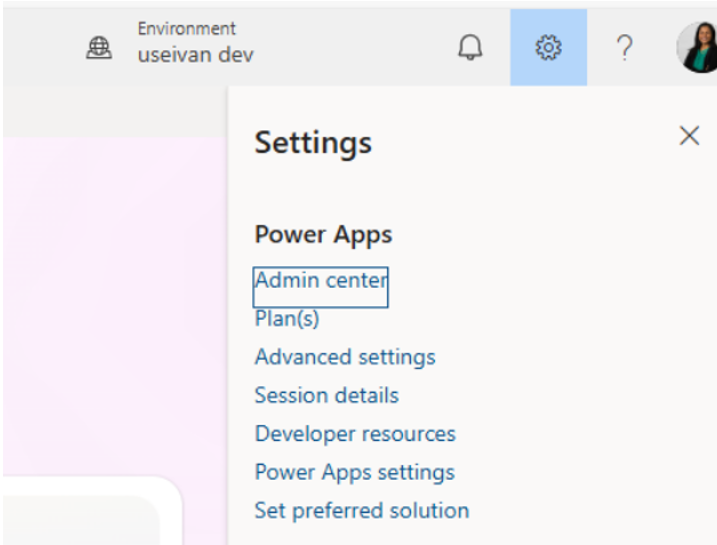
If you’re already at make.powerapps.com:

  • Click the gear icon (⚙) in the top-right corner.
  • Select Admin center from the dropdown.

Navigating the Admin Center Interface

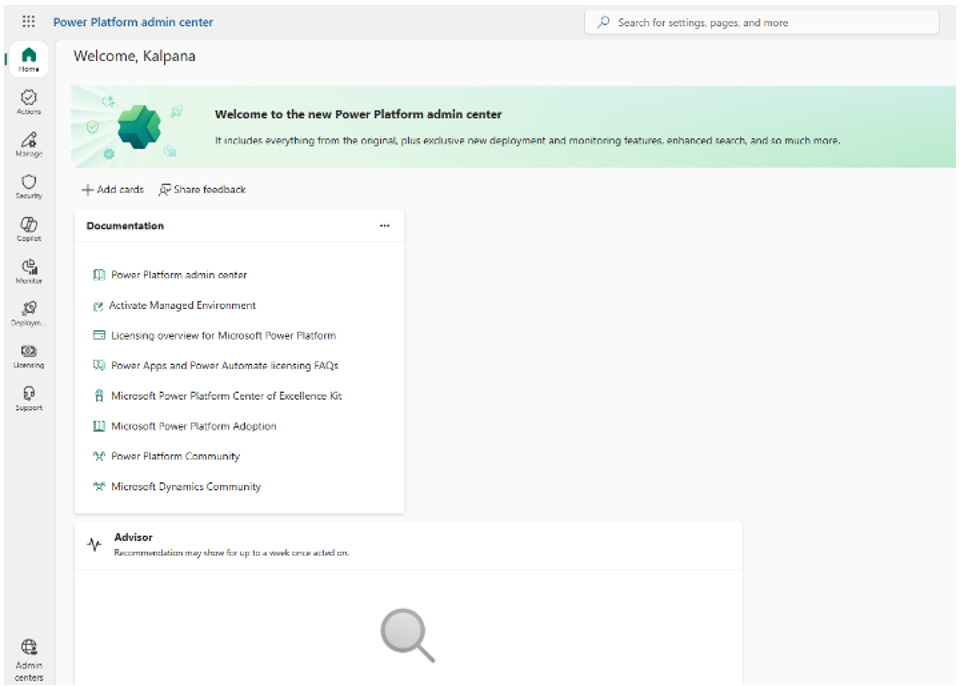
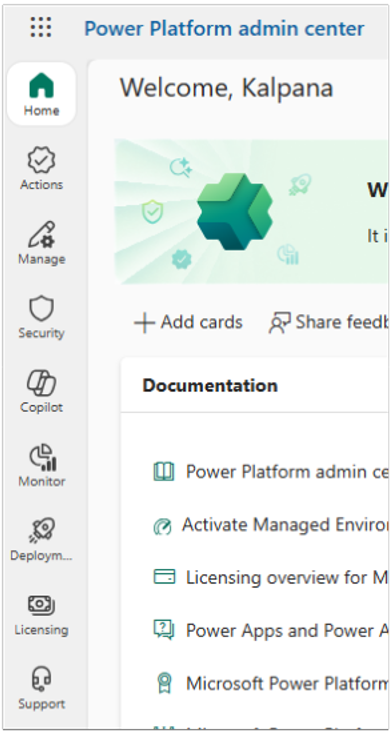
Once inside, the Admin Center is organized into several key sections in the left navigation panel:

  • Actions – See recommendations to fix issues and improve performance.
  • Manage – Manage users, environments, environment groups, settings and inventory.
  • Security – Improve security based on recommendations and manage security settings.
  • Copilot – See how AI features are being used and manage related settings.
  • Monitor – Track overall performance and follow alerts you have set.
  • Deployment – Manage deployments in your tenant to help keep apps and their data secure.
  • Licensing – Manage licenses, usage and capacity and track productivity and cost savings.
  • Support – Troubleshoot problems, create support requests and track known issues.

Who Has Access to the Admin Center?

Not everyone in your organization can see or use the Power Platform Admin Center. Access is governed by Microsoft Entra ID (formerly Azure Active Directory) roles and Power Platform-specific roles. Here’s the breakdown:

Microsoft Entra ID (Tenant-Level) Roles

These roles are assigned in Microsoft Entra and form the foundation of power platform admin roles with tenant‑wide access:

RoleWho It’s For What They Can Do
Global Administrator IT Leadership / CTO Full access to ALL Microsoft services including PPAC. Can do everything. 
Power Platform Administrator Dedicated Power Platform Admin Full access to PPAC. Manages environments, DLP, analytics and support tickets. Cannot manage M365 users. 
Dynamics 365 Administrator CRM / ERP Admins Full access to PPAC environments that include Dynamics 365 or Dataverse apps. 
Microsoft 365 Global Reader Compliance / Audit roles Read-only access to M365 services including limited PPAC visibility. 
Power BI Administrator BI and Analytics team Manages Power BI settings, capacity and workspaces in PPAC. Limited to BI scope. 
Billing Administrator Finance / Procurement Can view and manage billing, subscriptions and licenses in PPAC. 

The “Power Platform Administrator” role is the recommended role for dedicated admins and is the primary role most organizations rely on for Power Platform admin roles. Avoid using Global Administrator for day-to-day Power Platform management – it follows the principle of least privilege.

DLP Policies: Who Can Create and Manage Them?

Data Loss Prevention (DLP) policies are one of the most powerful features for enforcing Power Platform governance in PPAC. They control which connectors (data sources) can be used together in Power Apps and Power Automate, preventing accidental data leakage.

DLP Policy Scope and Access

  • Global Administrator – Can create tenant-wide and environment-scope DLP policies
  • Power Platform Administrator – Can create tenant-wide and environment-scope DLP policies
  • Environment Administrator – Can create DLP policies scoped only to their environment(s)
  • Environment Maker – Cannot create or modify DLP policies
power platform gov feature

Your Guide to Power Platform Guidance

Get the full story on Power Platform Governance! Address challenges and get best-practice guidance to build your governance framework and roadmap with Withum’s downloadable guide. 

Download Guide

Licenses: What Do You Need to Access PPAC?

You do NOT need a Power Platform license to access the Admin Center – you need the right Entra admin role. However, managing environments with Dataverse may require appropriate capacity licenses.

Any user with one of the qualifying Entra roles (Global Admin, Power Platform Admin, Dynamics 365 Admin) can access admin.powerplatform.microsoft.com regardless of whether they have a Power Apps Per User or Power Automate license. The admin role itself is what unlocks the portal.

Best Practices for Admin Center Access

Strong power platform admin roles help balance security, governance and day‑to‑day operational efficiency.

  • Use dedicated admin accounts – Avoid using your daily user account for admin tasks. Create dedicated admin accounts with MFA enforced.
  • Follow least privilege – Assign the Power Platform Administrator role not Global Admin for Power Platform-only responsibilities.
  • Audit role assignments regularly – Use Microsoft Entra’s Access Reviews to periodically verify who holds admin roles.
  • Use Privileged Identity Management (PIM) – If using Entra ID P2, use PIM to make admin roles just-in-time rather than persistent.
  • Document your environments – In PPAC, add descriptions to every environment so it’s clear who owns it and its purpose.
  • Set up admin email notifications – In PPAC > Settings > Email notifications, configure alerts for capacity issues, license usage and environment creation.

Quick Reference: Role Capabilities at a Glance

Capability Global Admin PP Admin D365 Admin Env Admin Env Maker 
Access PPAC ✅ ✅ ✅ ❌ ❌ 
Manage all environments ✅ ✅ ✅* Own env only ❌ 
Create DLP (tenant-wide) ✅ ✅ ❌ ❌ ❌ 
Create DLP (env-scope) ✅ ✅ ✅* ✅ ❌ 
View usage analytics ✅ ✅ ✅ Limited ❌ 
Manage licenses/billing ✅ Limited ❌ ❌ ❌ 
Create environments ✅ ✅ ✅ ❌ ❌ 
Create apps & flows ✅ ✅ ✅ ✅ ✅ 

* D365 Admin access applies to environments that include Dynamics 365 or Dataverse apps. 

Wrapping Up

The Power Platform Admin Center is your command hub for governing the entire Power Platform ecosystem. Knowing where it is is just the start. Understanding who has access and what they can do is what separates reactive firefighting from proactive, well-governed platform management.

Withum plus signs.

Have Questions or Need Guidance?

Our Digital Workplace Solutions Team can assist with Power Platform success to maximize your spend and get the most out of the platform.

Contact Us

Related Insights

Read more
person on a laptop conducting a cloud data migration
Tableau to Power BI Migration: What It Actually Looks Like, How Long It Takes and What to Expect

Many organizations running Microsoft 365 have reached the same inflection point: they are paying for Power BI and still running Tableau. Two platforms. Two sets of access controls. Two support workflows. Two vendor relationships. At some point, that math stops making sense. But the reason most organizations stay put is straightforward: migration looks painful. Before…

Read more
laptop with the microsoft 365 copilot logo
What Microsoft’s Latest Copilot Changes Mean for Enterprise Licensing Strategy

Microsoft’s latest update to Copilot availability across Word, Excel, PowerPoint and OneNote is an important signal for enterprise leaders. More than a feature change, it clarifies the distinction between broadly available AI assistance and the premium, workflow-embedded experiences tied to Microsoft 365 Copilot licensing and deeper Copilot integration within core productivity workflows. Beginning April 15,…

Read more
data security shield
Data Loss Prevention Best Practices: Governance, Visibility and AI Readiness

Data Loss Prevention: Guardrails for a World of Data Sprawl and AI For many CIOs and IT Managers, Data Loss Prevention (DLP) has moved from a discretionary security control to an operational necessity. The drivers are familiar: increasing compliance pressure, accelerating AI adoption and growing concern about how sensitive data is governed as information spreads…