

This post breaks down Power BI and Fabric licensing into a simple framework so you can determine which users need Pro or PPU licenses, when Fabric capacity makes sense and how workspace location affects who can view and share content.
Why Power BI Feels Confusing (And How to Simplify It)
Power BI license typesareeasiest to understand when you separatetheminto two building blocks:
- Per-user licenses (who can create, share and consume content)
- Capacity (where content is hosted and how broadly it can be consumed)
Since Microsoft Fabric’s introduction, Power BI is increasingly positioned as a workload (or “experience”) within Fabric, and licensing guidance now follows this model.
What’s Changed Since Older “Pro vs Premium” Articles
1) Power BI Premium per Capacity (P-SKUs) Is Being Replaced by Fabric Capacity (F-SKUs)
Microsoft has consolidated dedicated-capacity purchasing around Microsoft Fabric capacity (F-SKUs). Power BI Premium per capacity SKUs (P-SKUs) are now primarily legacy/transition scenarios for existing customers, and most new dedicated-capacity purchases are Fabric capacity.
2) Power BI Is Positioned as an Experience Within Microsoft Fabric Licensing
Power BI remains available as a standalone service, but administration and licensing are described through the Fabric lens—especially when you use dedicated capacity.
3) Pricing Has Changed (And Older Posts Often Cite Outdated Numbers)
Many older blog posts and guides reference outdated pricing. The numbers below reflect current public U.S. list pricing as published by Microsoft (actual pricing may vary by agreement, region or billing model).
Current Pricing (U.S. List Pricing on Microsoft Pages)
Per-user licenses:
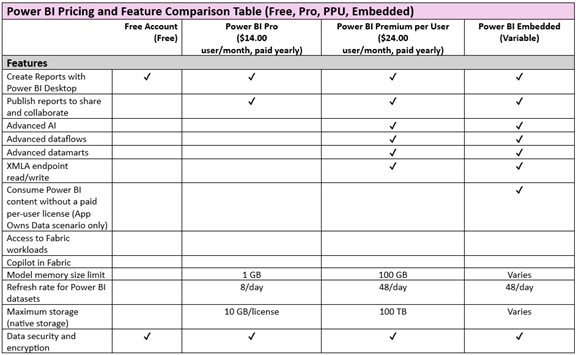
- Power BI Pro: $14.00 per user/month (billed annually; higher month-to-month)
- Power BI Premium Per User (PPU): $24.00 per user/month
- Microsoft Fabric Free: $0
Important clarification: “Fabric (Free)” refers to account access only. It does NOT include free Fabric capacity. Free users rely on shared capacity or capacity purchased by their organization.
Source: Power BI pricing page
Power BI License Types in Fabric
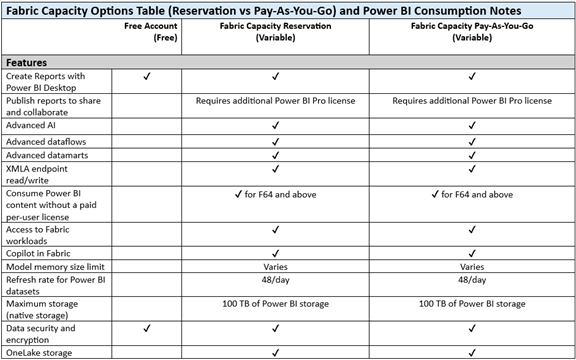
Microsoft’s pricing pages include side-by-side feature tables that summarize per-user licensing and Fabric capacity options. The charts below are included for quick reference.
Source: Power BI: Pricing Plan | Microsoft Power Platform
Source: Power BI: Pricing Plan | Microsoft Power Platform
Fabric Capacity Pricing (F-SKUs)
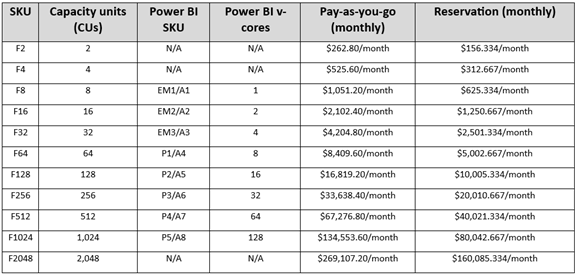
Fabric capacity is purchased as Capacity Units (CUs) and can be billed as pay-as-you-go or via reservation. Billing is hourly under the hood, and pricing varies by region and agreement. The table below reflects approximate monthly equivalents based on Azure list pricing.
Microsoft Fabric Capacity Pricing (As Shown on Azure Pricing Page)
OneLake and Storage Pricing (High-Level)
- OneLake storage: $0.023 per GB per month.
- OneLake BCDR storage: $0.0414 per GB per month.
- OneLake cache: $0.246 per GB per month.
- SQL storage: $0.25 per GB per month; SQL backup storage: $0.10 per GB per month.
Storage costs are separate from Fabric capacity pricing and should be considered in long-term planning.
The Simple Framework: User License + Workspace Location
Your users’ capabilities depend on two things: (1) their per-user license, and (2) where the report and its underlying semantic model are stored (shared vs capacity-backed workspace).
Step 1 — Identify Your Users: Creators vs Viewers
Start by splitting your audience into two groups:
- Creators (authors/publishers): build semantic models, publish reports, manage workspaces and share content.
- Viewers (consumers): primarily view reports/apps and interact with visuals.
Step 2 — Decide Where Content Will Live: Shared vs Dedicated Capacity
Option A: Shared (Standard) Capacity
Shared capacity is the default pool of resources. In shared capacity, organizations commonly license both creators and viewers with Pro (or PPU) for collaboration and consumption.
Option B: Dedicated Capacity (Fabric Capacity / Legacy Premium Capacity)
Dedicated capacity provides reserved compute for your organization. The modern purchase path is typically Fabric capacity (F-SKUs). A common pattern is to license a smaller creator group with Pro/PPU and allow a broader viewer audience to consume content when it’s hosted in capacity-backed workspaces.
Important: For free users to consume reports, both the report and the underlying semantic model must be stored in the capacity-backed workspace.
Step 3 — Choose Per-User Licenses (Plain English)
Microsoft Fabric Free
Best for individual exploration and for viewing content hosted in eligible capacity-backed workspaces (with permissions). Microsoft Fabric Free users have limited sharing/collaboration capabilities in shared capacity scenarios.
Power BI Pro
Best for most creators and teams collaborating in shared capacity. Pro is the baseline license for publishing, sharing, and collaborating in the Power BI service.
Power BI Premium Per User (PPU)
Best for teams who need premium features per user without purchasing dedicated capacity. PPU workspaces behave differently from capacity-backed workspaces; users accessing PPU content generally need PPU.
Common Real-World Scenarios
Scenario 1: Small Team Where Most Users Collaborate
- Typical approach: Pro for creators and viewers in shared capacity workspaces.
Scenario 2: Few Creators, Many Viewers (Broad Distribution)
- Typical approach: Pro/PPU for creators + Fabric capacity for key workspaces + free viewers consuming capacity-hosted content.
Scenario 3: Existing Premium per Capacity (P-SKU) Customer
- Typical approach: Plan renewal transition to Fabric capacity (F-SKU) and reassign workspaces accordingly.
Common Pitfalls (And How to Avoid Them)
- “We bought capacity, so nobody needs Pro.” Creators typically still need Pro or PPU for publishing, managing, sharing, and collaboration workflows.
- Free viewers can’t see the report. Usually, the semantic model isn’t stored in the capacity-backed workspace. Ensure both the report and semantic model live in capacity.
- Treating PPU like capacity. PPU is premium per user; capacity-backed sharing economics and rules differ.
The Five-Question Checklist (Start Here)
Using the framework above, these questions will help you determine the right mix of user licenses and capacity for your organization.
- How many creators vs viewers will you have?
- Do you want many viewers to consume without Pro licenses?
- Are you buying new dedicated capacity or migrating from legacy Premium capacity?
- Do specific teams require premium features (PPU vs capacity decision)?
- Where will your semantic models live (shared vs capacity-backed workspaces)?
Let’s Bring It All Together
Organizations have the option to organize their Power BI and Microsoft Fabric licensing and subscriptions to best fit their reporting needs. Microsoft provides flexibility and options that tailor to those needs. Planning an approach that considers the questions we discussed above, as well as doing a little more internal research, will augment this process and ensure that you go with the best option for your organization.
Contact Us
This blog covers Power BI and Fabric licensing, but each organization is unique. For help with users, workspaces, and capacity plans, contact Withum’s Digital Workplace Solutions Team. We’re here to assist you.