



Blog 8 min read

A Breakdown of Microsoft 365 Admin Roles and Responsibilities (Previously Office 365 Admin Roles)

Swati Raj
Swati Raj

In another recent blog post, we talk about how to access Microsoft 365 Defender and Microsoft Purview Compliance Portals (formerly Office 365 Security and Compliance Center) and a set of admin roles used for securing and governing tenant data. In this post, we will cover the various admin roles and responsibilities of Microsoft 365, including the impact of the addition of Copilot features to the tenant.

A close-up shot of a digital tablet displaying a concept interface for user access control and permissions management.

Microsoft 365 Roles and Responsibilities

Many times, we are asked questions on the various administrator roles and responsibilities of Microsoft 365 (M365) which prompted me to write this blog. If your organization is new to Microsoft 365 or has already been using a Microsoft 365 (previously Office 365) tenant for some time, it is always critical to spend time reviewing the various admin portal access available.

Microsoft continues to provide different roles to target various M365 workloads to help prevent intentional or unintentional internal breaches. As of today, Microsoft has significantly expanded role granularity, introduced AI-powered admin features through Copilot and enhanced security controls with phishing-resistant authentication methods like passkeys and FIDO2 keys.

Here is a comprehensive list of roles that are available to you within Microsoft 365 along with best practices and recommendations based on my vast experience.

If you are currently migrating to Microsoft 365, you will need to make sure you have the right admin memberships in place prior to going live.

Admin role Who should be assigned to this role? 
Exchange Admin Assign the Exchange Admin role to users who need to view and manage your users’ email mailboxes, Microsoft 365 groups and Exchange Online. 

Exchange Admins can also: 
• View and manage user mailboxes 
• Manage Microsoft 365 groups and group settings 
• Recover deleted items in a user mailbox 
• Configure archiving and deletion policies 
• Configure anti-spam protection 
• Set up “send as” and “send on behalf” delegates  
• Manage modern authentication policies and mailbox auditing (now enabled by default) 
• Configure mail flow rules and transport rules 
• Manage address lists and global address lists 
Global Admin Assign the Global Admin role to users who need global access to most management features and data across Microsoft online services. 

Only Global Admins can: 
• Reset passwords for all users
• Add and manage domains 
• Manage Microsoft Entra Conditional Access, Identity Protection and Privileged Identity roles 
• Configure organization-wide security settings 
• Manage tenant-level Copilot configurations and AI governance 

Note: The person who signed up for Microsoft online services automatically becomes a Global Admin. 
Pro tip: Giving too many users global access is a security risk and we recommend that you have between two and four Global Admins. 
All Global Admins should be protected using phishing-resistant MFA (FIDO2, Windows Hello, passkeys). 
Global Reader Assign the Global Reader role to users who need to view admin features and settings Global Readers cannot edit any settings, they can only review security configurations as well as monitor compliance settings. 
Note: This role remains an excellent choice for audits, visibility and security reviews.  
Groups Admin Assign the Groups Admin role to users who need to manage all groups settings across Microsoft 365 and Microsoft Entra (previously known as Azure Active Directory). 

Groups Admin can: 
• Create, edit, delete and restore Microsoft 365 groups 
• Create and update group creation, expiration and naming policies 
• Create, edit, delete and restore Entra security groups 
• Manage dynamic group membership rules in Microsoft Entra 
• Configure group visibility and member access controls 
Helpdesk Admin Assign the Helpdesk Admin role to users who need to do the following: 
• Reset passwords 
• Force users to sign out 
• Manage service requests 
• Monitor service health 
• Access multi-factor authentication settings for non-admins 

Note: The Helpdesk Admin can only help non-admin users and users assigned these roles: Directory Reader, Guest Inviter, Helpdesk Admin, Message Center Reader and Reports Reader. 
Office Apps Admin Assign the Office Apps Admin role to users who need to do the following: 
• Use the Office cloud policy service 
• Create and manage cloud-based policies for Office apps 
• Create and manage service requests 
• Monitor service health 
• Manage Microsoft 365 apps policies, update channels and app health settings
• Configure Copilot for Microsoft 365 features and usage policies 
• Manage app security and update deployment 
Service Admin Assign the Service Admin role as an additional role to admins or users whose role does not include the following, but they still need to do the following: 
• Open and manage service requests 
• View and share message center posts 
• Access Microsoft 365 Service Health with improved incident reporting 
• Monitor service degradation and incidents 
Use Case: Assign as an additional role to supplement other admin roles 
SharePoint Admin Assign the SharePoint Admin role to users who need to access and manage the SharePoint Online admin center. 

SharePoint Admins can also: 
• Create and delete sites 
• Manage site collections  
• Configure sharing policies
• Manage Loop file storage, advanced external sharing controls, and sensitivity label enforcement for sites
• Manage site-level security and compliance settings
• Monitor SharePoint storage and usage 

Note: Users assigned to this role will have access to all content in SharePoint. 
Teams Service Admin Assign the Teams Service Admin role to users who need to access and manage the Teams admin center. 

Teams service admins can also: 
• Manage meetings 
• Manage conference bridges 
• Manage org-wide settings 
• Manage Teams rooms, Copilot for Teams settings and shared devices  

Note: Users assigned to this role will have access to all Teams content.  
User Admin Assign the User Admin role to users who need to do the following for all users: 
• Adding users and groups 
• Assign licenses 
• Manage most user properties 
• Creating user views 
• Updating password expiration policies 
• Managing service requests 
• Monitoring service health 

The User Admin can also do the following actions for users who aren’t admins and for users assigned the following roles: Directory Reader, Guest Inviter, Helpdesk Admin, Message Center Reader, Reports Reader: 
• Managing usernames
• Deleting and restoring users 
• Resetting passwords 
• Force users to sign out 
• Managing authentication methods, passkeys and password less policies in Microsoft Entra 
• Configure passkeys and Windows Hello for Business settings  

Advanced/Granular Admin Roles and Permissions

Additionally, if you are part of a larger organization, you should be looking into admin roles with reduced access (using Role-Based Access Control – RBAC), which are only available for both Exchange Online, Microsoft Teams, Microsoft 365 Defender and Microsoft Purview (with dedicated RBAC for eDiscovery, DLP, insider risk and incident management).

As your IT department grows larger, these granular roles allow you to dedicate specific admins to particular areas of Microsoft 365 while maintaining security and compliance.

Exchange Online

In Exchange Online, there are several built-in role groups for specific administrative tasks:

Role Group Purpose 
Helpdesk Manage user mailbox settings while preventing mail flow modifications 
Compliance Perform audit log searches and compliance investigations 
Records Management Configure retention policies and hold settings 
Organizational Management  Full Exchange Online management 
Recipient Management Create and manage mailboxes and distribution groups 

Note: Role assignments now integrate with Microsoft Entra Privileged Identity Management (PIM) for time-bound, just-in-time access.

Whether you are ready to onboard an M365 tenant or have already rolled it out, we can help you identify and assign roles, provide recommendations
and best practices. Click here to contact a member of our team today. 

Microsoft Teams 

In Teams, the following “sub-roles” are available in addition to the Teams Service Administrator: 

Admin Role Who should be assigned to this role? 
Teams Communications Administrator Manage calling and meetings features within Microsoft Teams, including call queues, auto attendants, Teams Phone settings and meeting policies. 

As per latest update: Now also manages Teams Rooms device settings,  Copilot meeting features and cross-cloud meeting policies. 
Teams Communications Support Engineer Troubleshoot Teams communications issues using advanced tools. The Engineer can access Call Analytics with PII, detailed meeting diagnostics and advanced troubleshooting reports. 

As per latest update: Includes support for Teams Phone Mobile,  Teams Rooms  analytics and real-time telemetry. 
Teams Communications Support Specialist Troubleshoot communications issues with basic tools. The Specialist
has access to Call Analytics, but data is anonymized and advanced statistics remain restricted.  

As per latest update: Supports troubleshooting for Teams Phone, 
meeting quality and device-level issues with limited visibility. 

Compare Admin Roles

Pro Tip: Given the large number of roles and tasks available to admins in Microsoft 365, it may be challenging sometimes to find out what role to grant for an admin who will perform a specific duty.

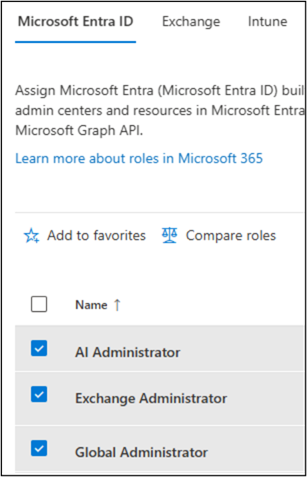
Microsoft 365 includes a built-in comparison tool to help you evaluate roles.

How to Access:

This tool is invaluable when planning role assignments for new team members or restructuring admin responsibilities.

Key Microsoft 365 Admin Roles Best Practices

Here are some guidelines to help you implement admin roles in Microsoft 365:

  • Have two to four Global Administrators in the tenant and reduce/limit usage of secondary admin roles
  • Make sure to enable Multi-Factor on all Global Admins except for one “break glass” account
    • In case of tenant lock-out, make sure you have a break-glass account Global Admin to get in. This account must use a phishing-resistant passwordless authentication method (e.g. Windows Hello for Business, Microsoft Authenticator app, FIDO2 security keys or Passkeys) and should be excluded from your Conditional Access policies
  • Require MFA for all user accounts. There are various levels of MFA that can be implemented depending on the sensitivity of the resource
  • In addition to the two to four Global Administrators, segment other IT administrators into multiple other admin roles
  • Use RBAC + PIM for conditional and time-bound admin access
  • Monitor all admin actions via audit logs
  • Make sure to segment only when necessary, as a deep segmentation may hinder IT admins from performing all their required tasks
  • Use Microsoft Entra Identity Governance and Access Reviews to regularly clean up admin role assignments and remove unused privileges
  • Configure Copilot for Microsoft 365 usage policies to define which admin roles can manage Copilot settings and also monitor Copilot usage and interactions for compliance

As with everything Microsoft, some of the features listed in the document might not be part of your existing plans. We are not including such information given that Microsoft constantly updates which plan includes which feature set.

Don’t forget to check out my companion blog, where we cover different types of roles to manage a Microsoft 365 tenant from a security and compliance point of view. It’s a great supplement to this post which describes the more traditional Service-based admin roles.

In conclusion, as the saying goes, with great power comes great responsibility. Take the time to review and compare the roles and assign the right people for the tasks.

Withum plus signs.

Have Questions or Need Guidance?

Ready to tighten admin access and reduce risk? Talk with Withum’s experienced team to align roles, responsibilities and governance the right way.

Contact Us

Related Insights

Read more
image of the copilot application.
Beyond Copilot Usage Reports: Measuring If Microsoft 365 AI Investments Actually Work

You rolled out Copilot to thousands of seats. Adoption looks healthy, and Copilot usage and adoption metrics are up and to the right. Then the CFO asks, “What exactly are we getting from this investment?” You can show them the adoption dashboard. You can show them that 73% of licensed users are actively engaging with…

Read more
A young woman's face looking at digital data.
Getting the Best Out of Your Microsoft Copilot Studio Agents: Setting the Right Expectations for Real Impact

As more organizations embrace generative AI, one of the most common things we hear is: “Why doesn’t my Copilot Studio agent always follow the instructions I give it?” This reaction makes sense, especially if you’re used to rule-based chatbots, where writing a rule directly creates an agent behavior. But generative AI doesn’t operate on strict…

Read more
team meeting
The Importance of AI Acceptable Use Policies (AUPs): What You Need to Know for the Modern Era

Guidance for Organizations Navigating AI Risks and Governance As artificial intelligence (AI) technologies become increasingly integrated into workplace operations, organizations face new opportunities and challenges. While AI can enhance productivity, automate processes and drive innovation, it also introduces risks related to data privacy, legal exposure and ethical use. To address these complexities, implementing a robust…