

ClientConnect
ClientConnect is a secure, web-based collaboration platform designed to enhance how you work with your Withum engagement team. It will be the primary way we interact to exchange information and deliverables.
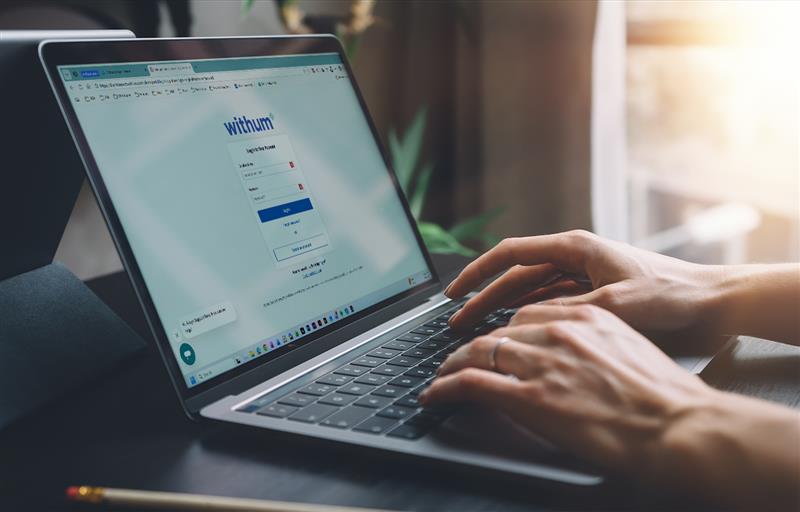
Logging into ClientConnect
Existing User
- If you’re an existing user, you can access your ClientConnect account here.
Create a New User Account
- If you’re a new user, view the helpful step-by-step guide on how to create a new user account on ClientConnect for the first time.
Using ClientConnect
- Sharing files with your engagement team is easy. You can submit files to use on your own or share them with us when requested. You even have an AI-agent available to help you determine where your documents should go.
- View this helpful step-by-step guide on how to upload files in ClientConnect and provide additional details on the files via the open free-text field.
- Sometimes, we need different files or additional information when working on a project. When this happens, you’ll receive a Change Request email. Submitting files to us in response to a Change Request is a similar process.
- View this helpful step-by-step guide on how to respond to Change Requests and explore how this appears in your ClientConnect account.
- If there is a time you uploaded a file but haven’t tagged it to a project, you’ll need to link an uncategorized file. You’ll also need to link and uncategorized file to a project if your AI-agent is unable to determine where the file should go.
- View this helpful step-by-step guide on how to Link Uncategorized Files.
- When your deliverables are ready to view, you’ll receive an email notification from ClientConnect. Your deliverables are accessible through the same Projects Dashboard where you collaborate and access project files, making it easy to see everything in one place. You can also download final copies of your deliverables from ClientConnect for your records.
- View this helpful step-by-step guide on how to Access and Download Deliverables.
- ClientConnect allows you to make payments within the same platform where you collaborate with us on your engagement projects. This eliminates the need to use multiple systems and keep track of separate logins.
- With the click of a button, you can toggle between your Projects Dashboard and your Invoices and Payments Dashboards.
- You can review your outstanding invoices and pay directly, either one-time or recurring, within ClientConnect via the Invoices Dashboard. You can also export invoices for your records.
- You can review your account’s payment history via the Payments Dashboard. You can also refine your payment history based on time intervals: 3 months, 6 months, 1 year or all time.
Dedicated Client Hub
Quickly and easily manage key aspects of your relationship with Withum.
Upcoming Events

Spotting Red Flags: Strengthening Financial Oversight in Nonprofits

AI-Powered Legacy Modernization: Reduce Technical Debt Without Replacing Everything

Year-End Tax Planning Strategies for High-Net Worth Individuals

The New Risk Frontier: AI, Cyber Defense and Insurance Strategies

Transfer Pricing at Year-End: Managing Cross-Border Tax Risks

The Target Has Shifted: What Every Organization Holding Personal Data Needs to Know About Today’s Cyber Threats

Essential State and Local Tax Year-End Planning Strategies

The Executive Risk Playbook: Managing Operational, Compliance and Cyber Risk in an Uncertain Environment